
UI Guide - CKMud Android Client
Complete walkthrough of the interface layout and every control
📑 Table of Contents
- Layout Overview
- Character Selection & Updates
- Top Toolbar
- Terminal Area
- Vitals Bar & Combat Displays
- Direction Buttons
- Input Bar & Commands
- Dual Joystick
- Drawers & Popups
- Scripting System
- Variables & Expressions
- Channel System
- Multi-Session Support
- MSDP Protocol
- Auto-Update & Stability
- CK-Auto Features
- Feature Gates
Layout Overview
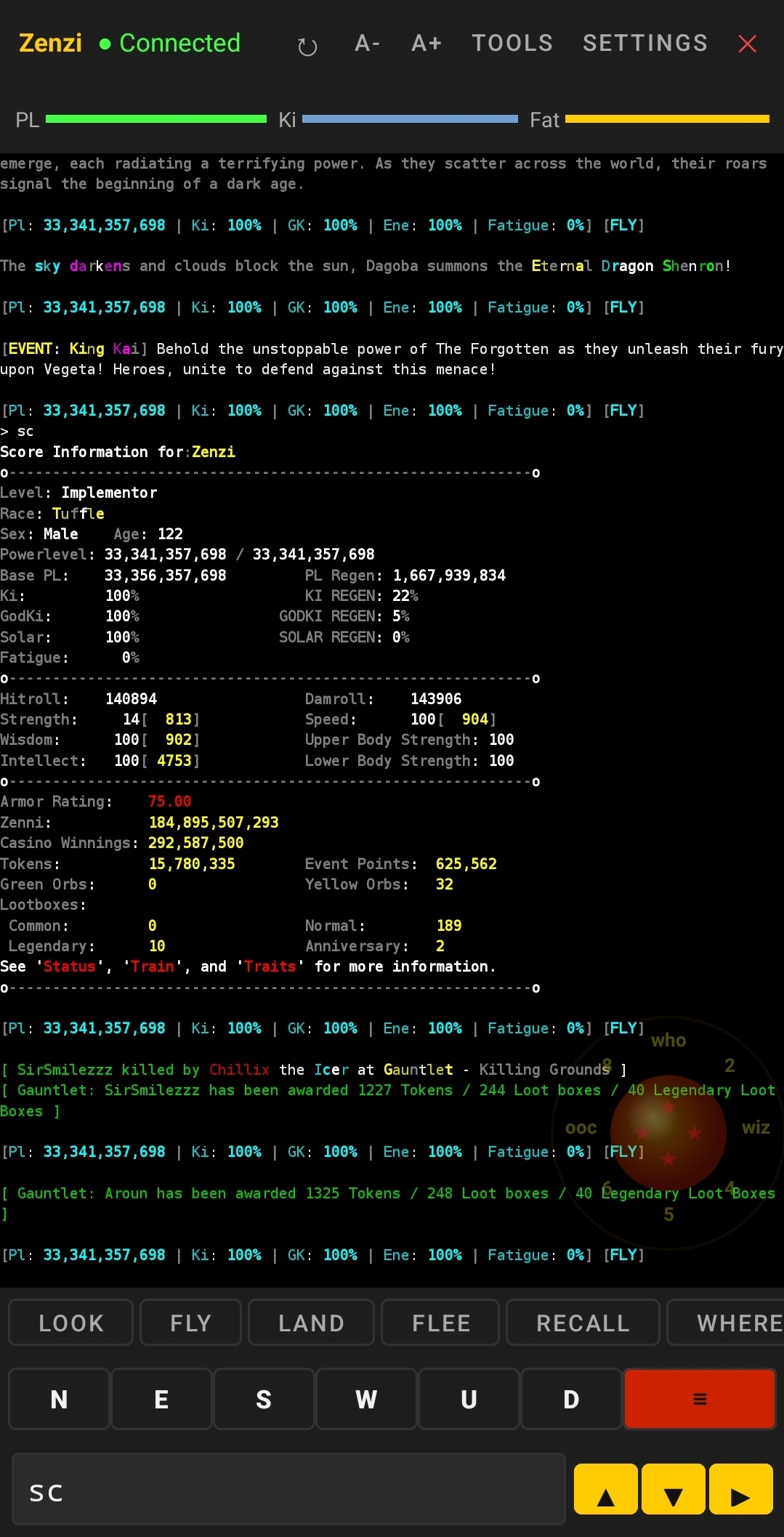
The CKMud interface is optimized for mobile gameplay with a complete terminal emulator, real-time vitals display, and intuitive controls. Here's the full interface in action:
Character Selection & App Updates
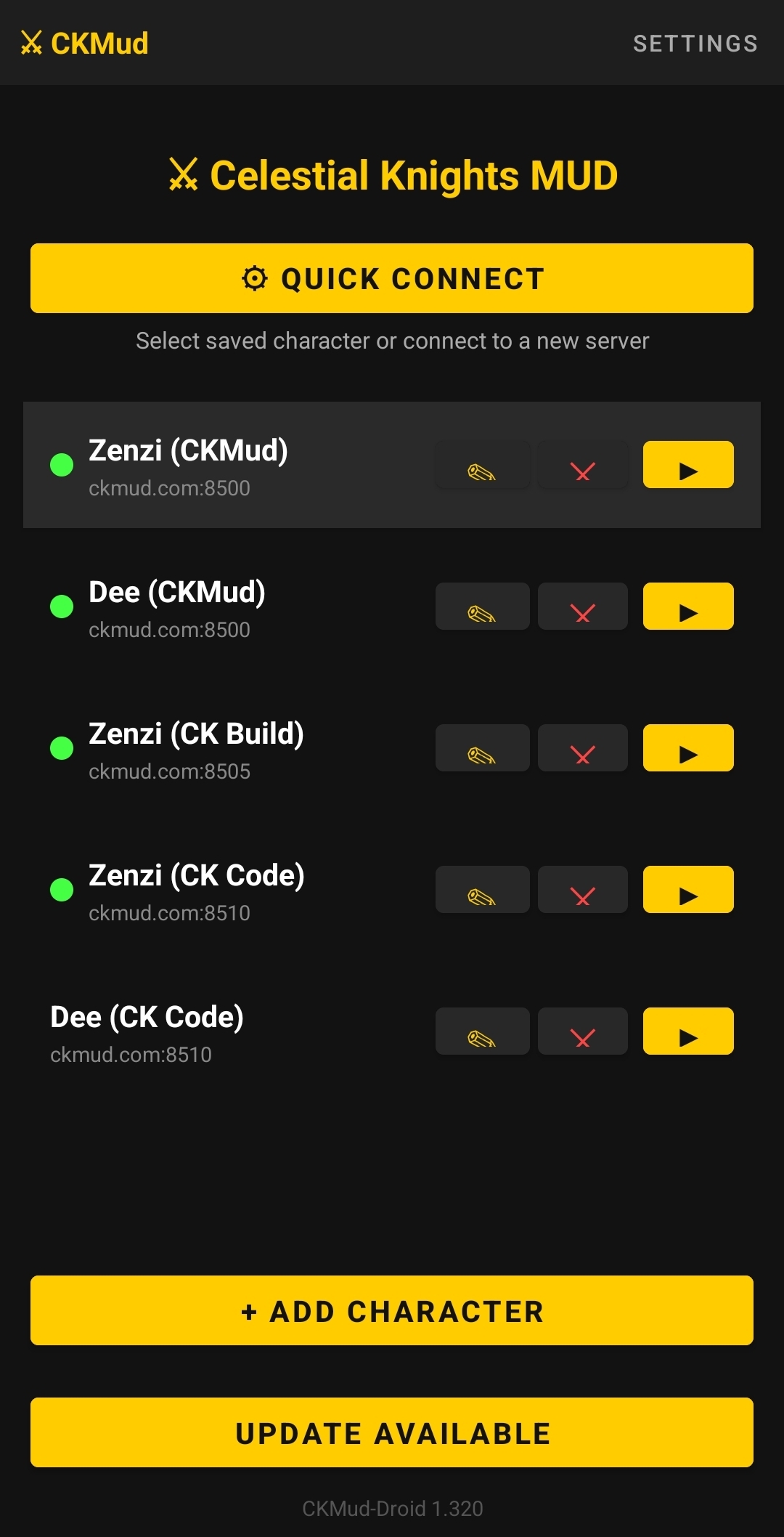
When you launch the app, you're greeted with the Character Selection menu where you can manage your connected characters and see update notifications:
Update Notifications
The app automatically checks for updates on launch:
- Update Available: Dialog appears if a newer version is available on the server
- Download & Install: Tap "Yes" to download the APK (shows progress %)
- Auto-Install: Once downloaded, the app prompts to install and automatically restarts
- Seamless: All of this happens in-app without needing the Play Store
Character Management
From the character selection screen, you can:
- + Add New: Create a new character connection
- Tap a character: Launch into the game with that character
- Long-press a character: Disconnect or remove from saved list
- Multiple sessions: Keep multiple characters connected in the background (max 16)
Top Toolbar

Left Side: Font Controls
A− and A+ buttons adjust the terminal font size.
- Range: 6sp to 24sp (default: 12sp)
- Settings persist per character
- Terminal auto-reflows text when size changes
Center: Character Name
Displays your current character name and server connection status.
- Green dot: Connected and active
- Shows: Character name (e.g., "Zenzi") and server (e.g., "ckmud.com:8500")
Right Side: Tools & Menu
TOOLS button opens the Tools drawer with tabs for:
- 📝 Aliases - Create and manage aliases
- ⚡ Triggers - Create pattern-matching triggers
- ⏱ Timers - Schedule repeating commands
- 📊 Variables - Manage persistent variables
- 💬 Channels - Configure custom regex channels
- 🎛️ Features - Toggle CKMud-specific UI features
- 🎮 Joystick - Configure joystick styles and commands
⋯ (Menu) button provides:
- 🔧 Settings - Global app settings (keep screen on, background connection, echo input, repeat mode)
Terminal Area
Full VT100 Terminal Emulator
The CKMud client includes a complete VT100 terminal emulator that renders all MUD output with pixel-perfect accuracy. This isn't just a text display—it's a full-featured terminal that handles escape sequences, cursor positioning, colors, and text styling exactly like a desktop terminal.
Scrollback Buffer
The terminal maintains a 5000-line scrollback buffer, allowing you to review past output:
- Scroll up with your finger to view older messages
- Lines beyond 5000 are automatically removed (FIFO)
- All formatting (colors, bold, underline) preserved in history
ANSI/VT100 Color & Formatting Support
Full support for ANSI escape sequences means all MUD colors, text effects, and styling display correctly:
- 256-color palette: All standard ANSI colors plus 216 extended colors
- Text attributes: Bold, italic, underline, inverse (swap fg/bg)
- Cursor positioning: Server can move cursor anywhere on screen
- Box drawing: Unicode box-drawing characters and braille patterns supported
ANSI-Aware Word Wrapping
When text is wider than the terminal column width, the app intelligently wraps at word boundaries without breaking ANSI color codes:
- Measures visible character count (ANSI codes are invisible)
- Wraps at word boundaries when possible
- Preserves all color information across line breaks
- Auto-adjusts when font size changes
- Prevents colored text from being double-wrapped due to invisible escape sequences
Auto-Scroll to Bottom
The terminal automatically scrolls to show the latest output when:
- You type a command in the input bar
- You tap a direction button
- You tap a joystick direction
- You switch to a different session
Split-Mode Scrolling
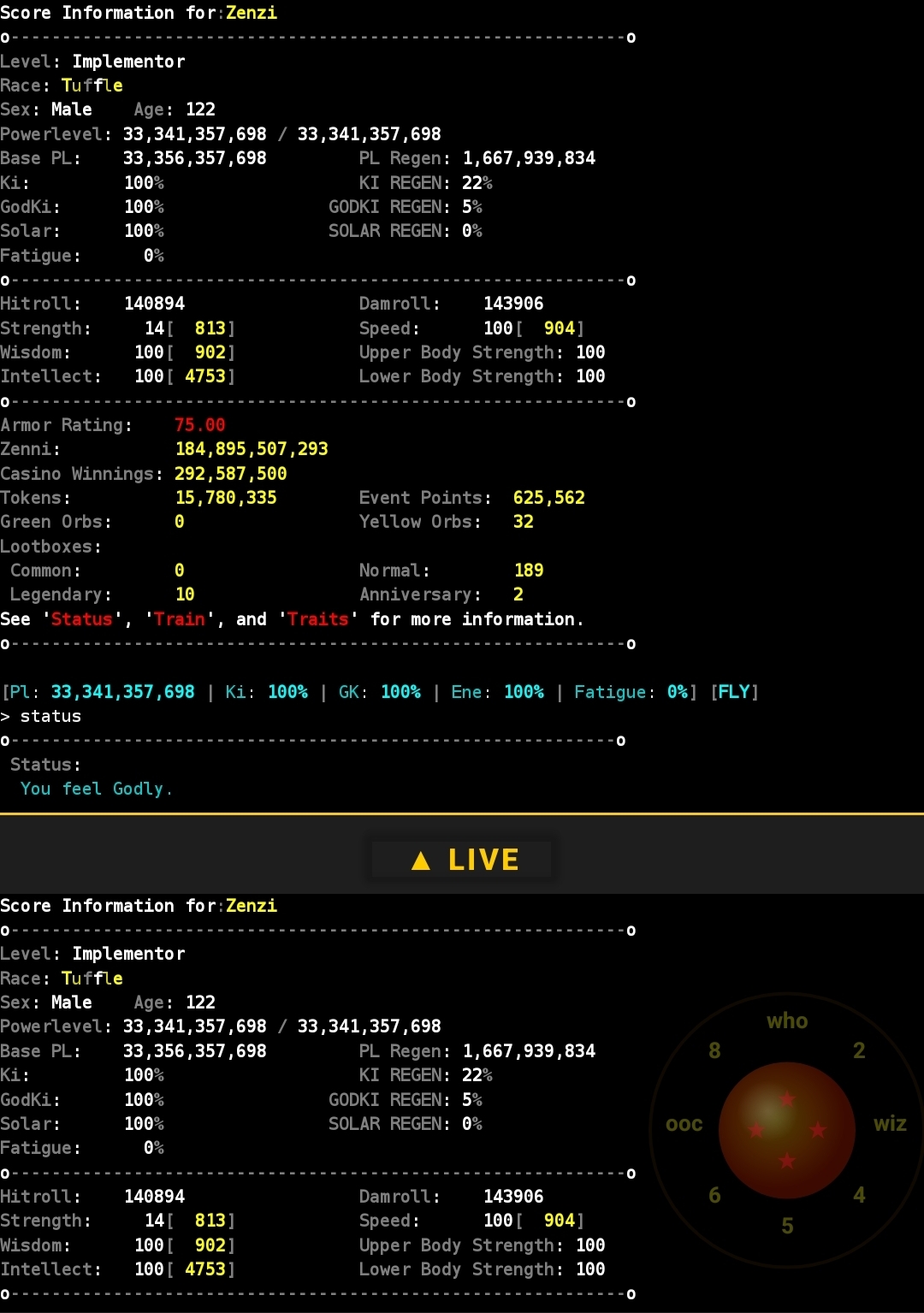
When you scroll up to review history, the terminal automatically splits into two panes to prevent the display from shifting as new content arrives:
How Split Mode Works
- Top pane (2/3): Frozen history at your scroll position
- Gold divider: Visual separator between old and new content
- Bottom pane (1/3): Live tail showing new messages in real-time
- ▲ Live button: Tap to snap back to live-tail mode
The history stays frozen while new messages arrive at the bottom, so you can read without distraction. The display doesn't shift as the emulator buffer advances.
Screen Orientation
The app is optimized for portrait orientation on mobile devices.
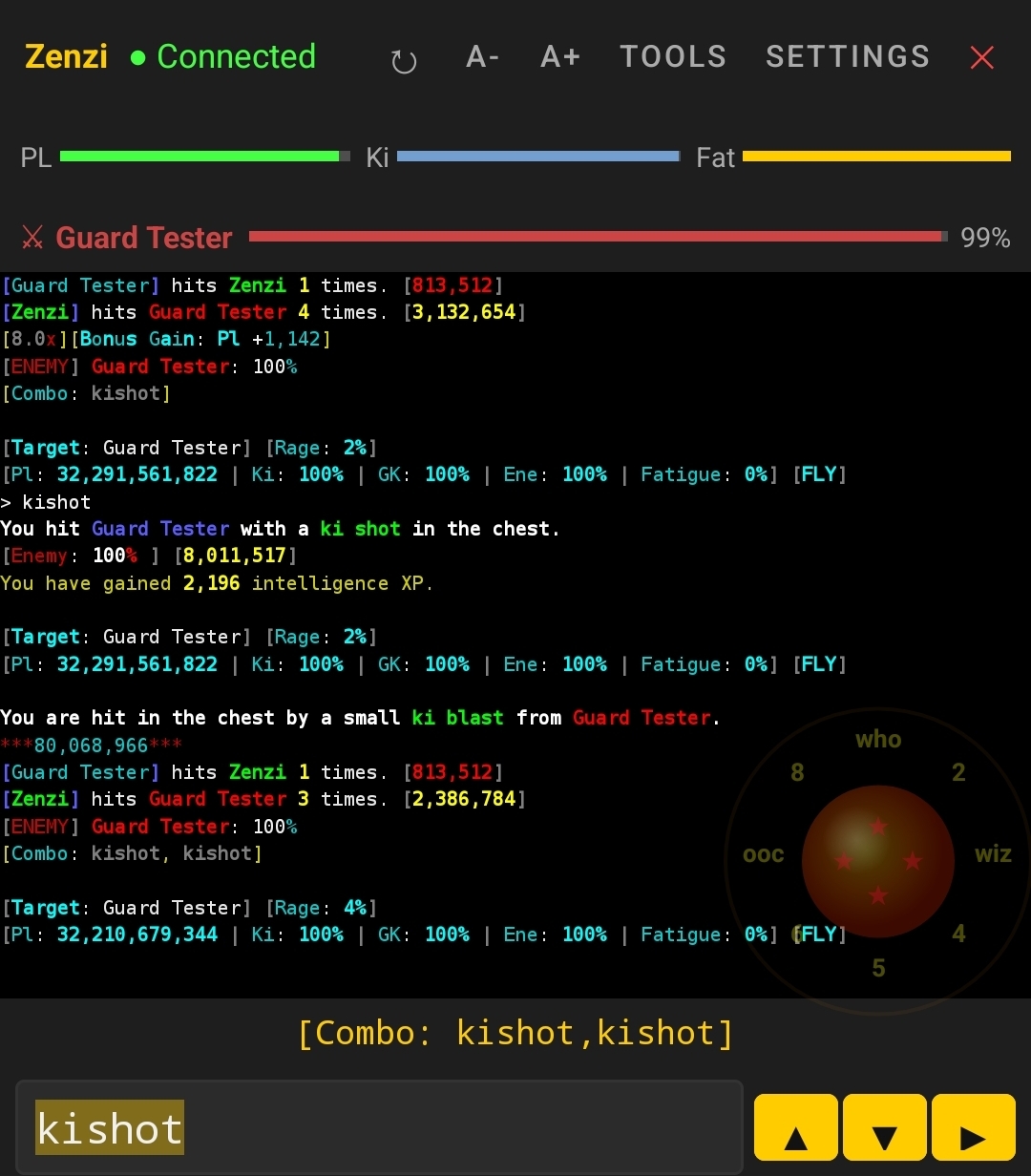
Vitals Bar (CKMud Only)
On CKMud servers, the vitals bar displays three progress bars below the toolbar:
PL (Power Level)
Horizontal bar showing current/max PL
- Color: Typically blue
- Updates from MSDP every server update
- Feature-gated: Toggle in Tools → Features
Ki
Race-dependent resource bar
- Android/BioAndroid: "Heat" label
- Others: "Ki" label
- Color: Typically green
- Feature-gated: Toggle in Tools → Features
Fatigue
Character fatigue/rested state
- Hidden for Android/BioAndroid (they don't fatigue)
- Color: Typically yellow
- Feature-gated: Toggle in Tools → Features
Opponent & Combo Bars
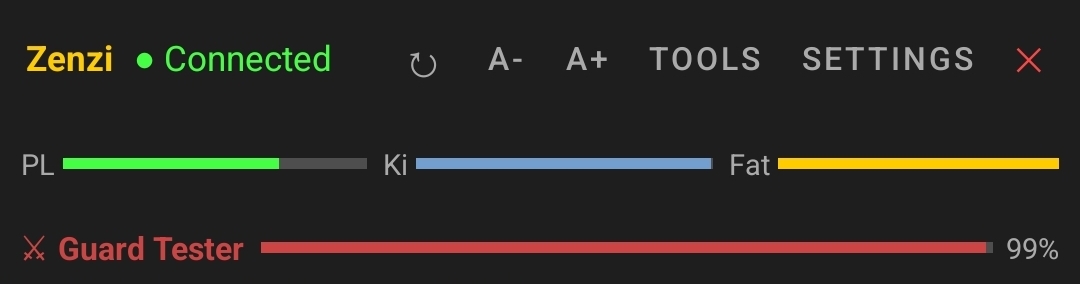
Opponent Bar
Displays during combat (CKMud only)
- Shows: Enemy name + red health bar
- Displays below vitals bars for easy reference
- Driven by MSDP OPPONENT_HEALTH and OPPONENT_NAME values
- Auto-hides when combat ends (opponent health 0%)
- Feature-gated: Toggle in Tools → Features
Combo Chain Display
Visual representation of your current combo chain during combat (CKMud only)
- Shows your position in the current combo chain
- Updates in real-time as you land hits
- Remains visible until combo breaks, completes, or combat ends
- Driven by MSDP COMBO_HISTORY value
- Feature-gated: Toggle in Tools → Features
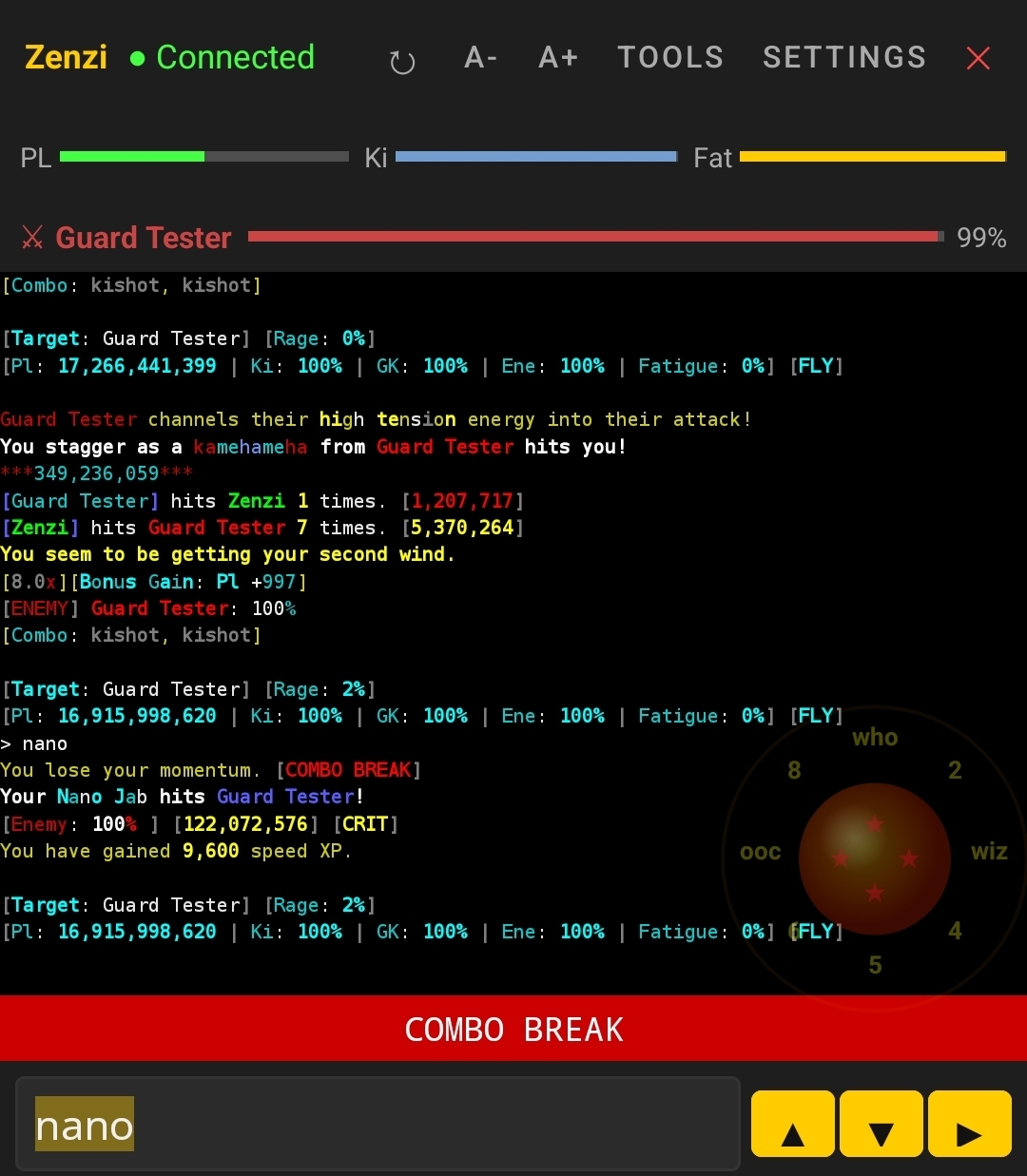
Combo Break Notification
Visual alert when your combo resets
- Appears when your combo chain breaks
- Fades out automatically after a couple seconds
- Provides immediate feedback for combat flow tracking
Direction Buttons
Quick-send buttons for movement commands on the input bar:
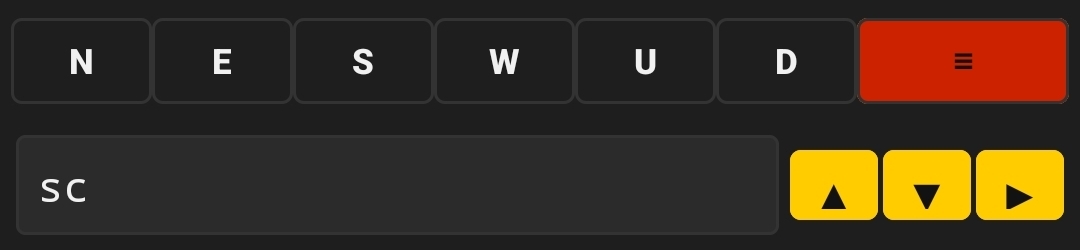
Button Actions
| Button | Sends | Use Case |
|---|---|---|
| N | north | Move north |
| E | east | Move east |
| S | south | Move south |
| W | west | Move west |
| U | up | Move up (vertical) |
| D | down | Move down (vertical) |
Input Bar & Command Entry
Multiple Input Methods
Commands can be sent in multiple ways, all of which auto-scroll the terminal to the bottom:
- On-screen keyboard: Type and press Enter/Send
- Hardware keyboard: Type and press Enter
- Direction buttons: N/E/S/W/U/D for movement
- Joystick: 8 directions or custom commands
- Quick command buttons: Yellow buttons on the input bar
Smart Command History (100 commands per session)
The app remembers up to 100 commands per character with intelligent navigation:
Basic Navigation
- ↑ Up arrow: Previous command (cycles backward through history)
- ↓ Down arrow: Next command (cycles forward)
- Each session maintains its own command history (no sharing between characters)
Prefix Filtering (Smart Search)
Start typing, then press ↑/↓ to filter history by what you've typed:
Scenario: Your history contains: "focus heal", "focus damage", "focus kick", "quaff potion"

Type: "fo" (in input box)
Press ↑ → shows "focus kick" (most recent command starting with "fo")
Press ↑ → shows "focus damage"
Press ↑ → shows "focus heal"
Press ↓ → shows "focus damage"

Type: "qu"
Press ↑ → shows "quaff potion" (only match)
This dramatically speeds up repeating similar commands without re-typing.
#N Repeat Prefix (Batch Commands)
Execute a command multiple times with a single send:
#40 drink flask        // Drink 40 times
#1000 train str        // Train str 1000 times (max)
#5 focus 'kenjutsu'    // Focus kenjutsu 5 times
#200 meditate          // Meditate 200 times
How It Works
- Range: 1 to 1000 maximum repetitions
- Syntax:
# - Works with: Any command, aliases, and trigger actions
- Per-session isolation: Repeats don't leak between active/inactive sessions
- Cancellation: Repeats stop when the session disconnects
#50 #alias_name
Echo Input (Optional Display)
By default, your typed commands are sent silently. When enabled in Settings, you'll see your commands echoed to the terminal:
> focus heal
You focus your energy toward healing.

> quaff potion
You quaff a healing potion.
Toggle: Menu → Settings → Echo Input
- Helpful for verifying commands were sent
- Useful for streaming/video recording
- Creates a complete session transcript in the scrollback
Dual Joystick
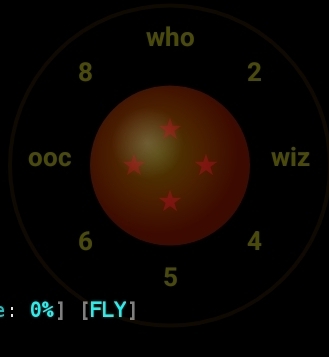
Overview
Optional on-screen dual joystick for 8-directional movement and custom commands:
- Left Joystick: 8 directions (N/NE/E/SE/S/SW/W/NW)
- Right Joystick: 4 custom commands (center, corners)
- Configurable per server (Tools → Joystick tab)
- 5 visual styles: Classic, Minimalist, Glossy Orb, Radar, Warp Gate
Configuration
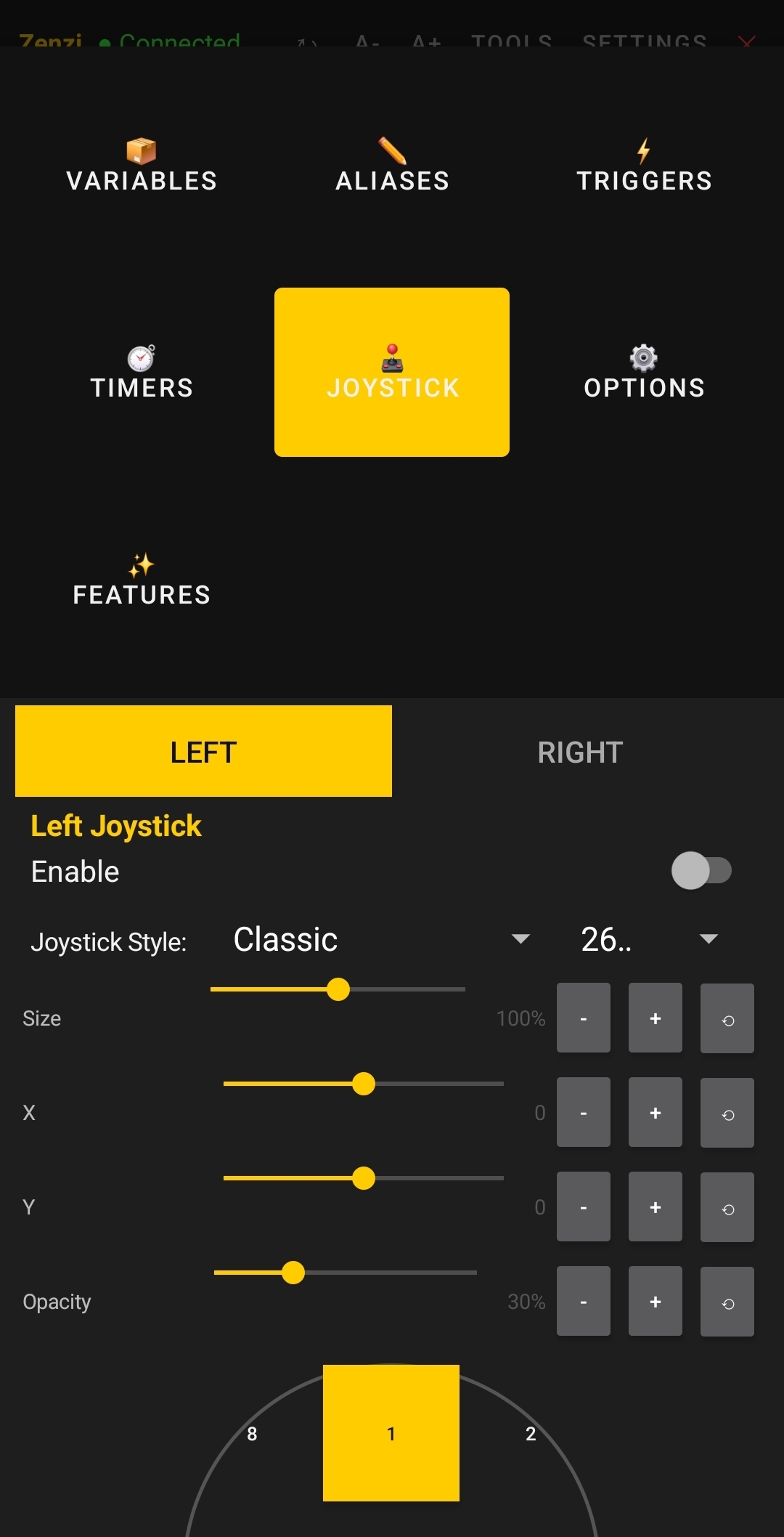
In Tools drawer, tap the Joystick tab:
- Enable/Disable: Toggle joystick visibility
- Style: Choose from 5 visual styles
- Size: Adjust joystick diameter
- Position: Move joystick to your preferred screen location
- Command Mapping: Assign commands to each direction
Movement Directions
Left joystick sends:
| Direction | Command |
|---|---|
| North | north |
| NorthEast | northeast (or "ne") |
| East | east |
| SouthEast | southeast (or "se") |
| South | south |
| SouthWest | southwest (or "sw") |
| West | west |
| NorthWest | northwest (or "nw") |
Right Joystick (Custom Commands)
Assign commands to the right joystick positions:
- Center: Fired when joystick is released at center
- Corners (N/E/S/W): Fired when joystick held in that direction
- Examples:
quaff potion,focus 'invigorate',look
Drawers & Popups
Session Drawer
Switch between characters or return to the main menu:
- Swipe right from the left edge: Opens session drawer showing all connected characters
- Tap a session: Switch to that character instantly
- + Add New: Create and connect to a new character
- Press back button: Returns to character select menu with options to keep sessions running in background or close them
Info Drawer (≡ Button)
Swipe up or tap the ≡ button at bottom to open the info drawer with tabs:
Chat Tab
View recent messages from channels
- 9 default channels: OOC, Chat, Quest, Event, Raid, Clan, Auction, Group, Tell
- Custom regex channels you've created
- 300 messages per channel (capped)
- Timestamp prefix on each message
Stats Tab
Character statistics (when enabled for the server)
- Feature-gated per session
- Content populated by server MSDP data
Affects Tab
Active buffs and debuffs (when enabled for the server)
- Feature-gated per session
- Updated from MSDP AFFECTS list
Room Tab
Current room description and NPCs (when enabled for the server)
- Feature-gated per session
- Populated from MSDP ROOM data
Tools Drawer (TOOLS Button)
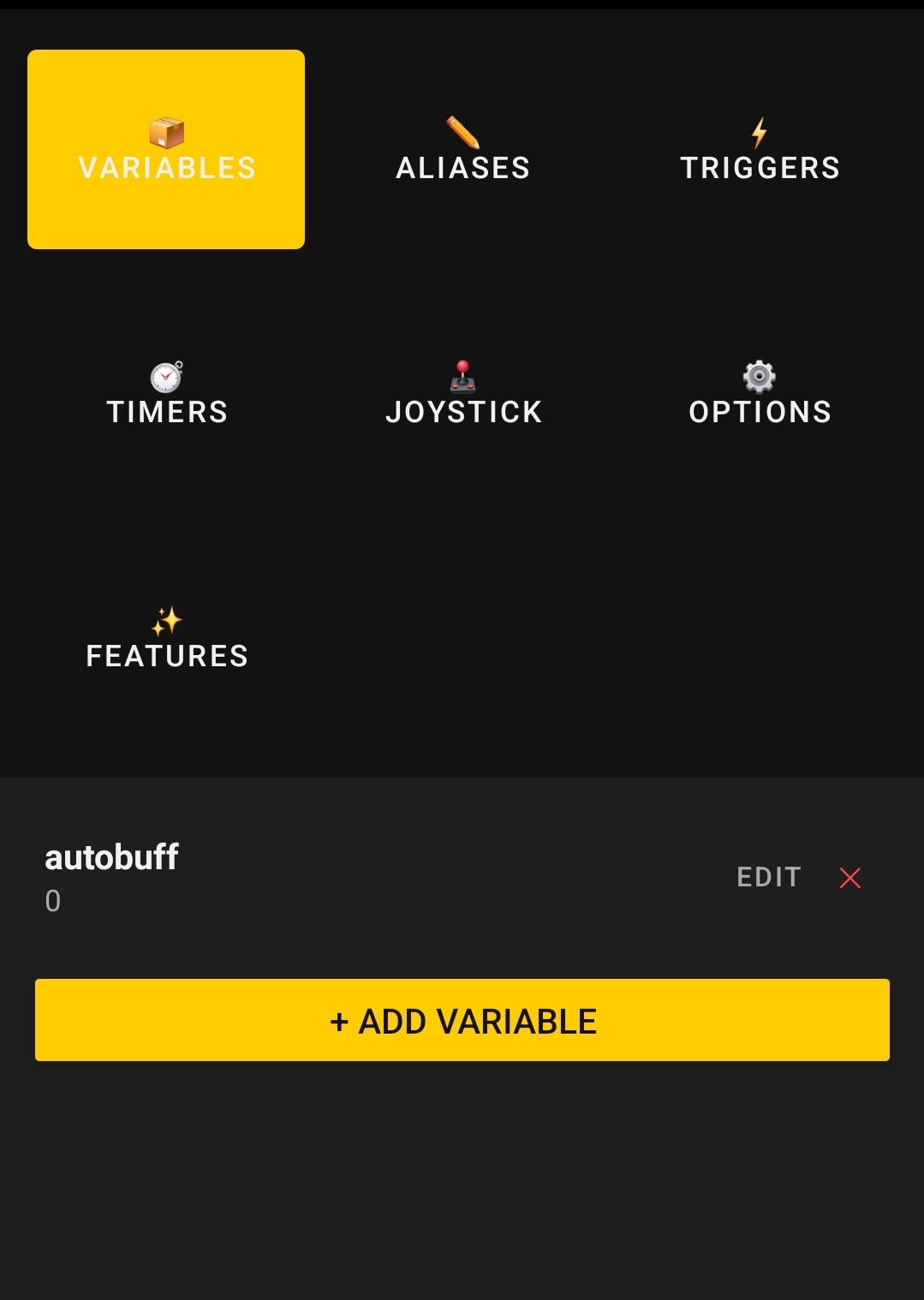
The Tools drawer contains all scripting and configuration tabs:
📝 Aliases Tab
Create commands that expand into longer sequences
- + Add Alias - Create new alias
- Edit/Delete existing aliases
- Per-character persistence
⚡ Triggers Tab
Patterns that match incoming text and execute commands
- + Add Trigger - Create new trigger
- Toggle regex mode (capture groups)
- Edit/Delete existing triggers
⏱ Timers Tab
Commands that execute on a schedule
- + Add Timer - Create new timer
- Set interval in seconds
- Edit/Delete existing timers
📊 Variables Tab
Persistent named variables
- + Add Variable - Create new persistent variable
- Edit value at any time
- Survives app restart (per-character)
💬 Channels Tab
Custom regex-based message channels
- + Add Channel - Create custom channel (max 11)
- Define regex pattern to match
- Configure popup notifications per channel
🎛️ Features Tab
Toggle CKMud-specific UI features
- VITALS - PL/Ki/Fatigue bars
- COMBO - Combo counter
- OPPONENT_BAR - Enemy health display
- DEFAULT_CHANNELS - 9 built-in channels
- STATS_TAB - Stats drawer tab
- AFFECTS_TAB - Affects drawer tab
- ROOM_TAB - Room drawer tab
🎮 Joystick Tab
Customize joystick appearance and commands
- Enable/disable joystick
- Choose visual style
- Adjust size and position
- Map commands to directions
⚙️ CK-Auto Tab
Automatic gameplay enhancements (CKMud-specific)
- Auto-Buff: Automatically focus buff skills when buffs expire
- Autowish: Automatically use Dragon Ball wishes when all collected
- Per-skill toggles to enable/disable specific buffs
- Runs even when session is inactive
- Per-character persistence
Scripting System (Aliases, Triggers, Timers)
The CKMud client includes a full TinTin-like scripting engine with aliases, triggers, timers, and variables for powerful automation and gameplay enhancement:
Aliases
Custom commands that expand into longer sequences
- Example: Alias
heal→cast 'invigorate' - Faster than typing full commands repeatedly
- Can include variables, expressions, and conditional logic
- Per-character persistence (survive app restart)
- Create/edit/delete in Tools → Aliases tab
Triggers
Patterns that automatically execute commands when text is received
- Example: Pattern
You are poisoned→ Actioncast antitoxin - Regex mode: Use regular expressions with capture groups (%1, %2, etc.)
- Example regex:
Opponent: (\w+) \((\d+)%\)→#note Opponent %1 at %2% health - Fire only when text matches (case-insensitive by default)
- Can execute multiple triggers per line of text
- Per-character persistence
- Create/edit/delete in Tools → Triggers tab
Timers
Commands that execute on a repeating schedule
- Example: Execute
meditateevery 10 seconds - Interval in seconds (1-3600 supported)
- Runs even when session is inactive
- Survives app backgrounding
- Per-character persistence
- Create/edit/delete in Tools → Timers tab
Import & Export Scripts
Share and backup your scripts between characters and devices. Export all your aliases, triggers, and timers to a JSON file, or import scripts from other characters or files.
Export Your Scripts
Export saves all scripts (aliases, triggers, and timers combined) into a single JSON file.
- Open Tools drawer → any script tab (Aliases, Triggers, or Timers)
- Tap the ↑ EXPORT button at the bottom
- A dialog appears showing the file path and a Share button
- File is automatically saved to:
Android/data/com.ckmud.client/files/{charname}_{host}_{port}.json - Tap Share to send via email, messaging, or other apps
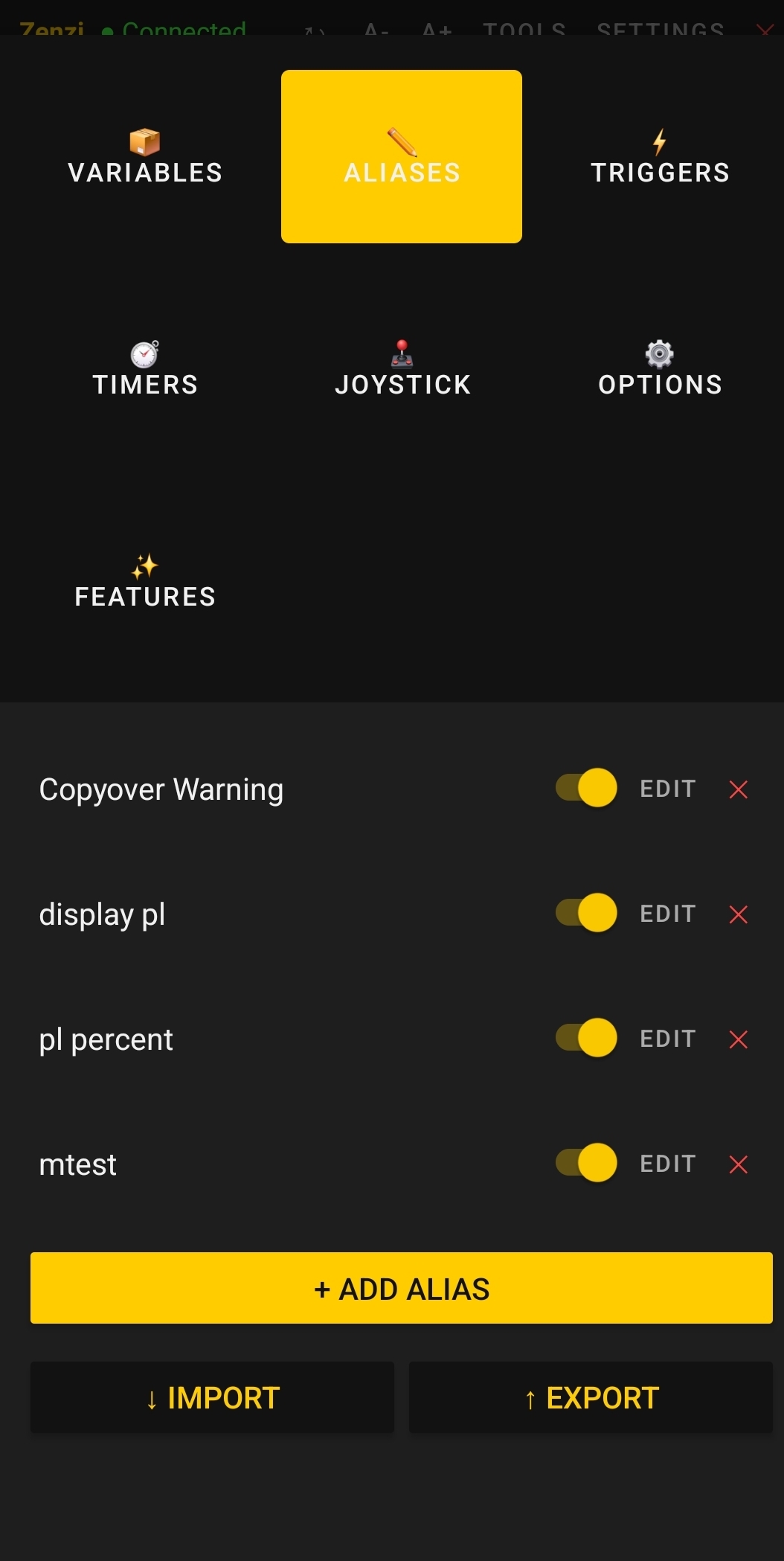
Import Scripts From Another Character
Copy scripts between your own characters on the same device.
- Open Tools drawer → any script tab (Aliases, Triggers, or Timers)
- Tap the ↓ IMPORT button
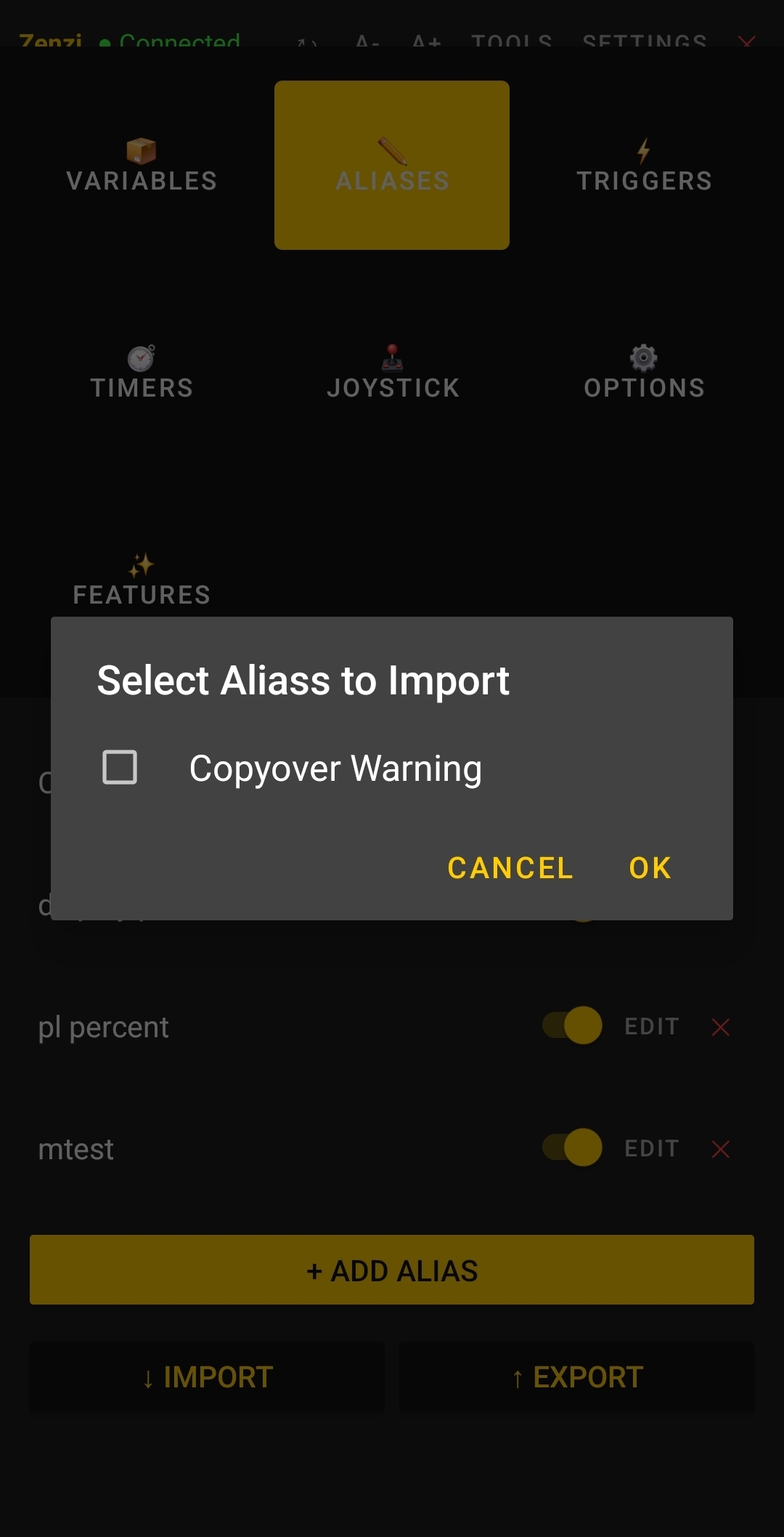
- Select the source character from the list (e.g., "Zenzi (ckmud.com:8500)")
- A checklist appears showing only scripts of the current tab type
- Check the scripts you want to import
- Tap OK to add them to your current character
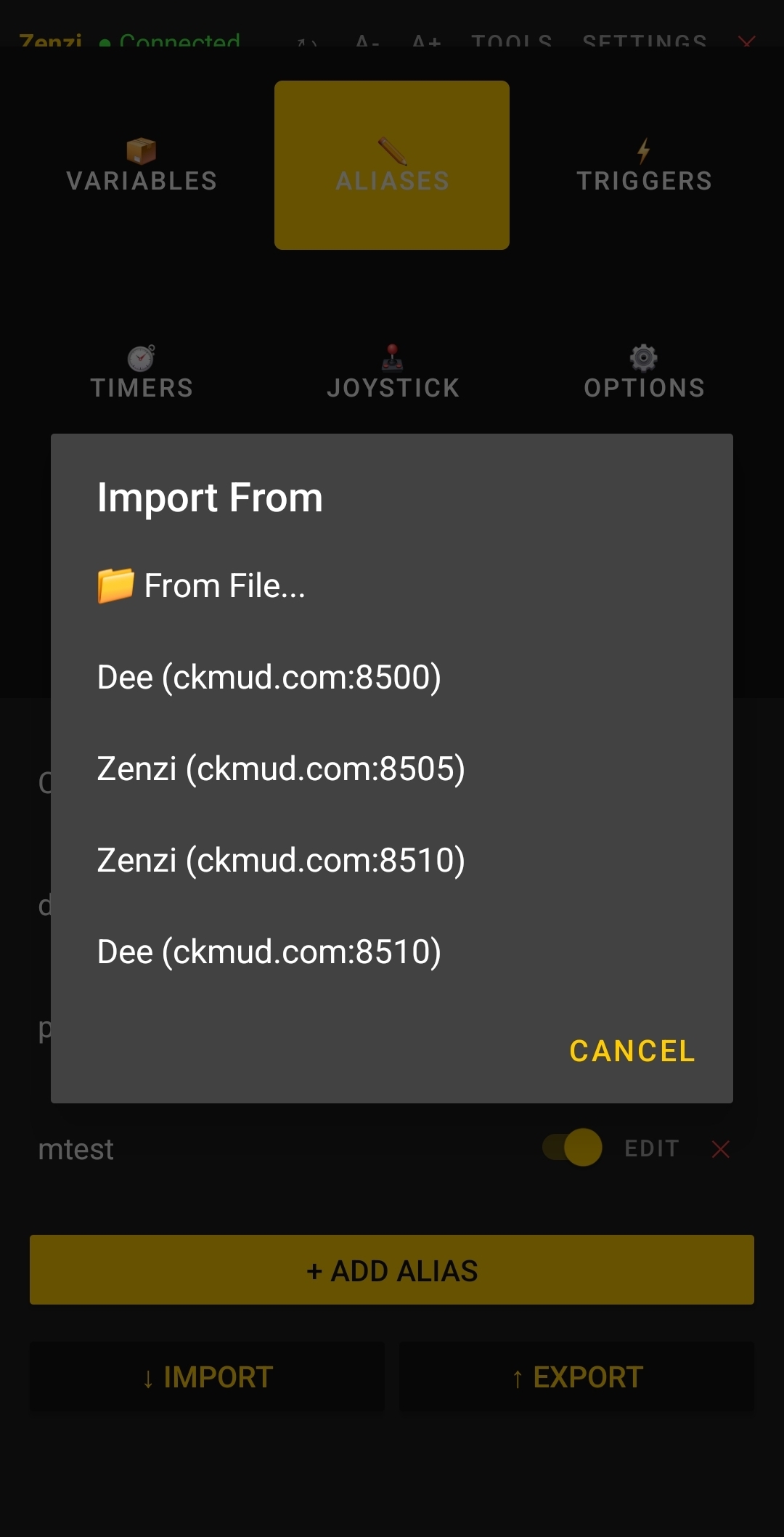
Import Scripts From a File
Load scripts from a previously exported JSON file or a file shared by another player.
- Open Tools drawer → any script tab (Aliases, Triggers, or Timers)
- Tap the ↓ IMPORT button
- Select 📁 From File... at the top
- If JSON files already exist in your app's files directory, tap one to import from it
- Or tap 📂 Browse... to open the system file picker and select a file from anywhere
- A checklist appears showing only scripts of the current tab type (e.g., only Aliases if you're in the Aliases tab)
- Check the scripts you want to import
- Tap OK to add them
File Format & Location
Exported files are JSON format and contain all script types:
{
  "character": "zenzi",
  "host": "ckmud.com",
  "port": 8500,
  "version": 1,
  "aliases": [...],
  "triggers": [...],
  "timers": [...]
}
Default location: Android/data/com.ckmud.client/files/
Filename format: {charname}_{host}_{port}.json
- Example:
zenzi_ckmud_com_8500.json - Persists until you uninstall the app
- Accessible via Android Files app
Usage Examples
Share Scripts With a Friend
- Export your scripts
- Tap Share and send via email, Discord, or messaging app
- Friend downloads the file and imports it into their app
Backup Before Reinstalling
- Export your scripts
- Save the JSON file somewhere safe (email it to yourself, send to a device, etc.)
- After reinstalling the app, import the file back
Transfer Between Devices
- On old device: Export and share the file
- On new device: Receive the file and import it
Variables & Expressions
Persistent named variables that you can set, modify, and use in commands:
Variable Substitution
Use @variablename in any command to insert the variable's value:
#var greeting "hello friend"
say @greeting           // Sends: say hello friend

#var target "zenzi"
focus @target           // Sends: focus zenzi
Math Operations
Perform arithmetic with the #math command:
#math damage 100
#math total @damage + 50     // total = 150
#math result @total * 2      // result = 300
#math remainder @result / 3  // remainder = 100 (integer division)

Supported operators: + - * /
Conditionals
Execute commands based on conditions:
#var pl 50
#if {@pl < 30} {cast heal}         // Execute if pl < 30
#if {@pl >= 80} {focus damage}     // Execute if pl >= 80

Supported comparisons: > < >= <= == !=
MSDP Values
Access server-provided MSDP data in your commands:
#note @msdp.PL remains   // Display current PL in terminal
#if {@msdp.PL < 20} {cast heal}  // Heal if low on power
#note Fighting: @msdp.OPPONENT_NAME
Manage Variables
In Tools → Variables tab:
- View all your variables and their current values
- Create new variable with + Add Variable
- Edit/Delete existing variables
- Persists across app restarts (per-character)
Channel System & Custom Patterns
The client automatically detects and organizes messages into channels for easy viewing:
9 Default Channels (CKMud)
On CKMud servers, the following channels are automatically detected and logged:
- OOC - Out-of-character chat
- Chat - General conversation
- Quest - Quest-related messages
- Event - Event announcements
- Raid - Raid messages
- Clan - Clan communication
- Auction - Auction house activity
- Group - Group/party messages
- Tell - Private messages
Custom Regex Channels (Max 11 per session)
Define your own channels using regex patterns to catch specific messages:
Channel Name: "Damage Taken"
Pattern: ^You take (\d+) damage   // Captures incoming damage

Channel Name: "Exp Gained"
Pattern: You gain (\d+) experience points
- Create/edit/delete in Tools → Channels tab
- Messages matching your pattern logged in Chat drawer
- Optionally configure popup notifications per channel
- 300 messages per channel (auto-capped)
Chat Drawer Access
View all channel messages in the info drawer (≡ button):
- Tap ≡ (info button) or swipe up
- Messages timestamped and ANSI-stripped for readability
- Unread indicator (red dot) on button when new messages arrive
Multi-Session Support (Up to 16 Concurrent)
Connect and maintain multiple characters simultaneously, each with independent settings:
Session Isolation
Each session is completely isolated:
- Terminal: 5000-line scrollback buffer per session
- Scripts: Aliases, triggers, timers per-character
- Variables: Independent variable sets per-character
- Channels: Custom channels per-character
- Font size: Font size setting per-character
- Joystick: Joystick layout per-server
- Features: Feature toggles per-session
Background Sessions
Inactive sessions continue running in the background:
- Receive and process all incoming text and MSDP updates
- Triggers and timers execute normally
- Terminal rendering skipped for performance (text buffered)
- No app restarts needed to swap characters
Switch Sessions
- Session dropdown: Tap session name in toolbar → select character
- Session drawer: Swipe right from left edge → tap session
- Instant switching: UI updates in milliseconds
MSDP Protocol Support
MSDP (MUD Server Data Protocol) provides real-time game state information to the client:
What MSDP Provides
Server sends key game data that the client displays and processes:
- CHARACTER_NAME - Your character name
- PL - Current/max power level
- KI - Current/max ki
- FATIGUE - Fatigue level
- OPPONENT_NAME - Current combat opponent
- OPPONENT_HEALTH - Enemy health percentage
- COMBO_HISTORY - Your current combo chain
- AFFECTS - Active buffs/debuffs
- ROOM_EXITS - Available directions
- + many more...
How It's Used
- Vitals bars: PL/Ki/Fatigue updated every server tick
- Opponent bar: Health bar during combat
- Combo display: Visual chain indicator
- Stats drawer: Populates stats/room/affects tabs
- Variables:
@msdp.PLetc. in commands and triggers
Auto-Update & Connection Stability
In-App Auto-Update System
Seamless app updates without the Play Store:
- Silent version check: Runs in background on app launch (5s timeout)
- Update prompt: "New version available - Download now?"
- Download & install: Progress dialog with percentage (0-100%)
- Auto-restart: App restarts cleanly after installation
- Fallback: If you navigate away, notification appears later
Connection Keepalive (IAC NOP)
Idle connections stay alive with periodic telnet NOPs:
- Purpose: Prevent server timeout during low-activity periods
- Frequency: Harmless telnet NOP sent every 15 seconds
- Transparent: Invisible to player, server ignores
- Effect: Connections remain stable indefinitely
Terminal Size (NAWS)
The client automatically sends terminal dimensions to the server:
- Dynamic: Updates when you rotate device or resize window
- Protocol: Telnet NAWS (Negotiate About Window Size)
- Server response: Server adjusts output formatting
CK-Auto Features (Automated Gameplay)
CKMud-exclusive automation features that run in the background, even on inactive sessions:
Auto-Buff System
Automatically focus buff skills when their effects expire, keeping you constantly buffed without manual intervention:
- How it works: Monitors MSDP AFFECTS list for active buffs
- Auto-focus: When a buff expires, automatically sends
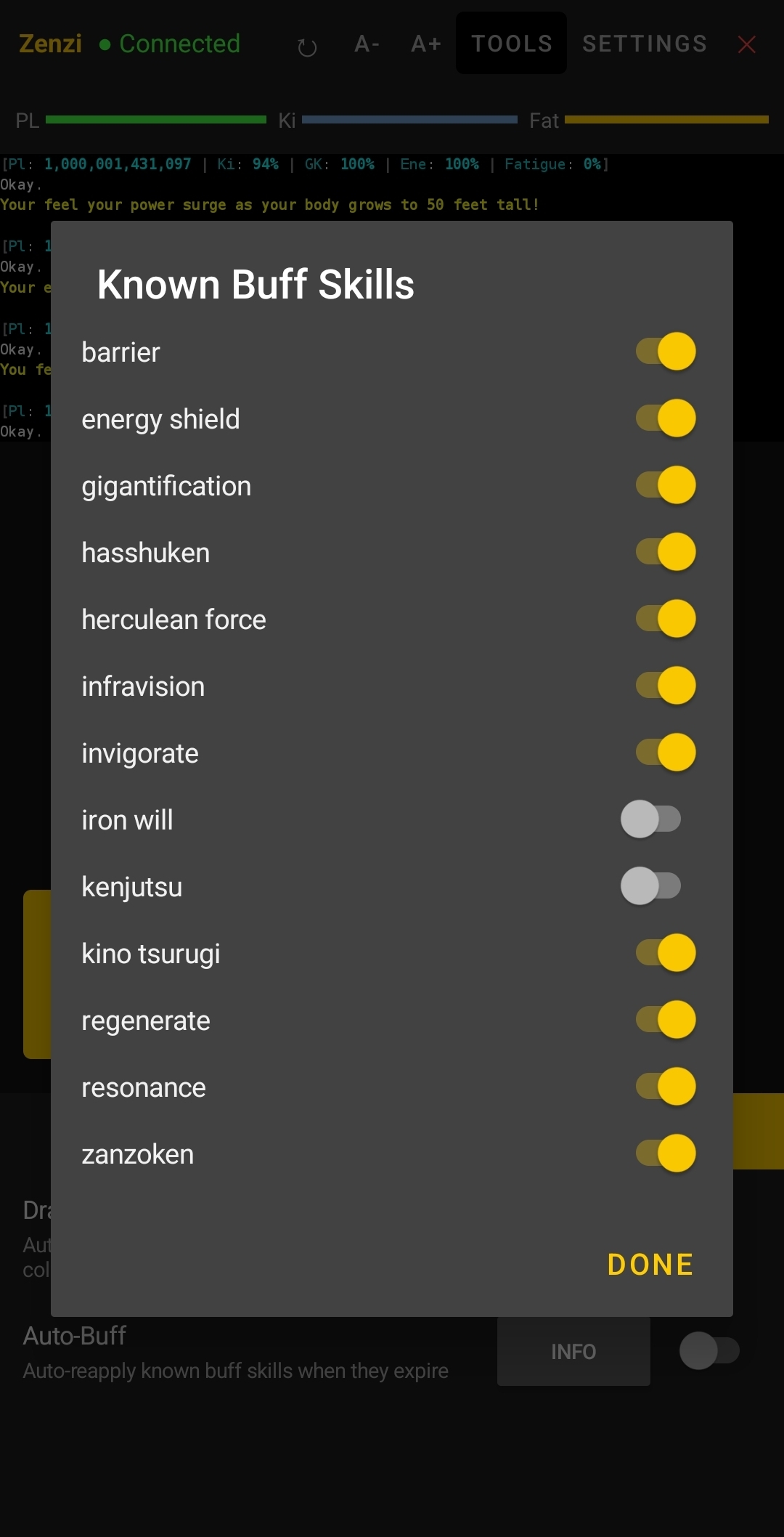
focus 'SkillName' - Supported skills: Zanzoken, Energy Shield, Barrier, Herculean Force, Resonance, Regenerate, Gigantification, Infravision, Invigorate, Kino Tsurugi, Hasshuken, Kenjutsu, Iron Will (13 total)
- Per-skill control: Enable/disable individual buffs via INFO button
- Always-off defaults: Kenjutsu and Iron Will default to OFF (can be toggled ON if desired)
- Disabled by default: Enable in CK-Auto tab → Auto-Buff switch
Autowish System
Automatically execute Dragon Ball wishes when all seven dragon balls are collected:
- How it works: Monitors for
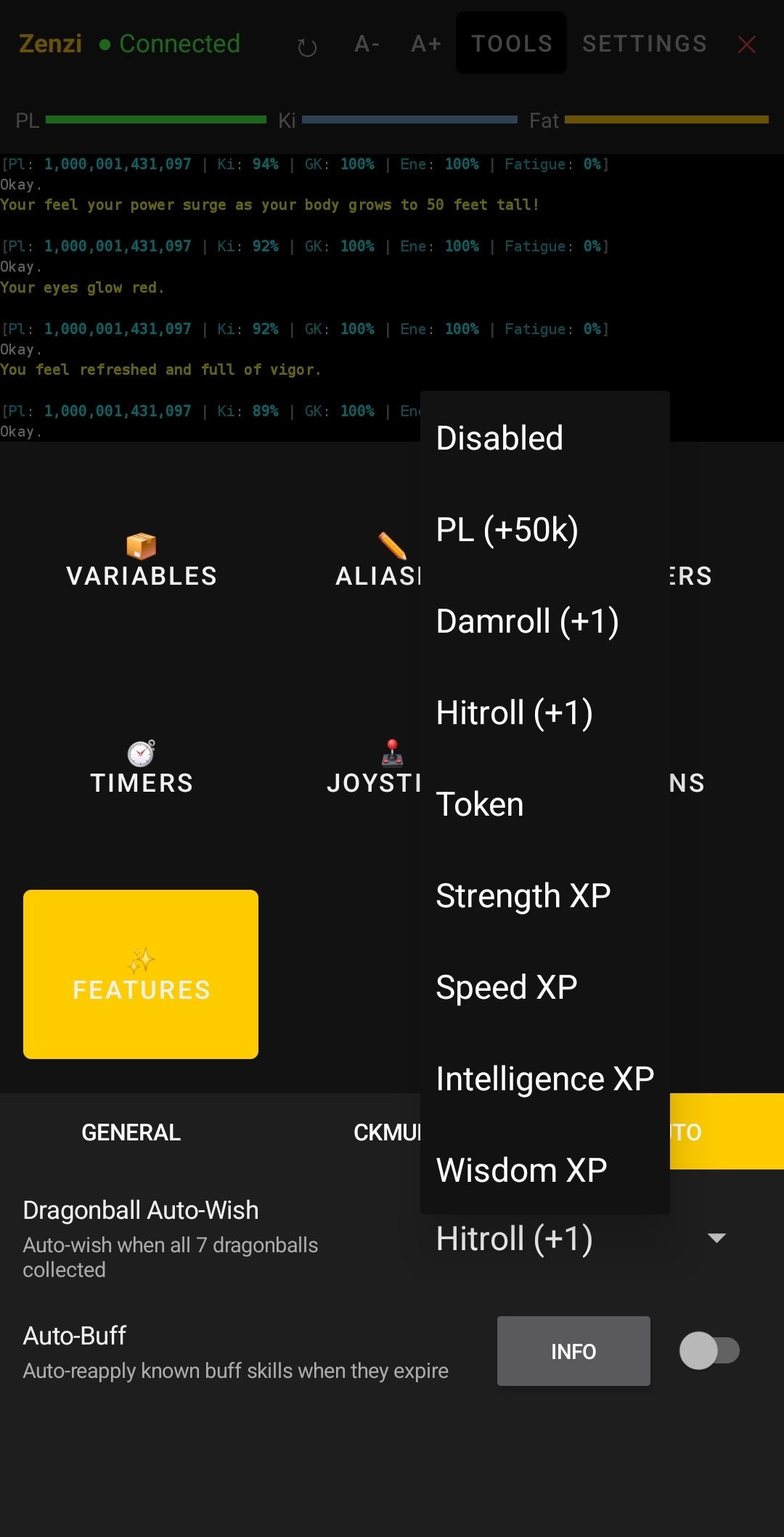
HAS_ALL_DRAGONBALLS=1MSDP value; when detected, automatically sends your selected wish command - Wish selection: Choose which wish to make (PL +50k, Damage +1, Hitroll +1, Token, or stat XP) from a dropdown
- Event-driven: Fires immediately when server reports all dragon balls collected; automatically stops when server clears the flag
- Debounce protection: If server keeps the flag set while clearing inventory, will only send wish once per 5 seconds to prevent spam
- Disabled by default: Enable in CK-Auto tab → Autowish switch
- Background operation: Runs even when session is inactive
Feature Configuration
Access CK-Auto features in Tools → CK-Auto tab:
- Auto-Buff row: Switch to enable/disable, INFO button for per-skill toggles
- Autowish row: Switch to enable/disable, dropdown to choose which wish to make
- Defaults: Disabled by default (opt-in to use)
- Persistence: Settings saved per-character
Feature Gates (CKMud-Specific UI Toggle)
The client includes several features specific to CKMud. These can be toggled per-session to use the client on other MUD servers:
7 Toggleable Features
- VITALS - PL/Ki/Fatigue bars (default: ON for CKMud)
- COMBO - Combo counter display (default: ON for CKMud)
- OPPONENT_BAR - Enemy health bar (default: ON for CKMud)
- DEFAULT_CHANNELS - 9 default channels (default: ON for CKMud)
- STATS_TAB - Stats drawer tab (default: ON for CKMud)
- AFFECTS_TAB - Affects drawer tab (default: ON for CKMud)
- ROOM_TAB - Room drawer tab (default: ON for CKMud)
Smart Defaults
- CKMud sessions: All features ON by default
- Other servers: Features OFF by default (no CKMud-specific UI)
- Override: Toggle in Tools → Features tab per-session